Installation Guide for MiKTeX, MacTeX, and TeX Live Across Operating Systems


This article discusses how to install various LaTeX engines used for creating documents across different operating systems. To learn LaTeX in depth, visit LaTeX Learning Guide.
1 Introduction
Want to write your thesis, scientific report, or book with the appearance of an international academic publication?
This guide will help you understand and install LaTeX on Windows, macOS, and Linux — from choosing the right distribution to solving common issues.
Perfect for both beginners and advanced users who want to work efficiently and professionally.
2 A Brief Overview of LaTeX
LaTeX is a document preparation (typesetting) system designed to produce professional-quality text layouts.
It is widely used in academia, science, and publishing because it handles complex structures such as:
- Mathematical formulas and scientific symbols
- Automatic citations and bibliographies
- Consistent and clean document layouts
To run LaTeX, you need a TeX distribution — a complete package containing all the components needed to write, compile, and format your document.
The three most commonly used distributions are MiKTeX (Windows), MacTeX (macOS), and TeX Live (cross-platform).
3 What Is a LaTeX Distribution?
A LaTeX distribution is a collection of software that provides:
- TeX engines such as pdfTeX, XeTeX, or LuaTeX
- Package manager for downloading and updating packages
- Font collections and document styles
- Compilers to convert
.texfiles into.pdf - Built-in editors (optional) for writing LaTeX code
In short, a LaTeX distribution is the foundation you need to write and compile documents seamlessly.
4 Comparison of the Three Popular Distributions
| Aspect | MiKTeX | MacTeX | TeX Live |
|---|---|---|---|
| Platform | Primarily Windows (also Linux & macOS) | macOS only | Windows, macOS, Linux |
| Initial Size | ±200 MB (basic version) | ±4 GB | ±4 GB |
| Installation Type | Modular (on-demand) | Full installation | Full or custom |
| Package Manager | MiKTeX Console (GUI) | TeX Live Utility | tlmgr (CLI) |
| Update Frequency | Frequent | Annual (with minor updates) | Annual |
| Ease of Use | ★★★★★ | ★★★★☆ | ★★★☆☆ |
| Auto-install Packages | Yes (default) | No | Can be enabled |
| Built-in IDE | TeXworks | TeXShop | TeXworks |
| Size After Installation | 1–4 GB | ±7 GB | 5–7 GB |
| License | Open Source | Open Source | Open Source |
| User Community | Large | Mac-focused | Very large |
| Recommended For | Windows & beginners | macOS users | Advanced users & Linux |
5 Installing MiKTeX (Windows)
5.1 Step 1: Download the Installer
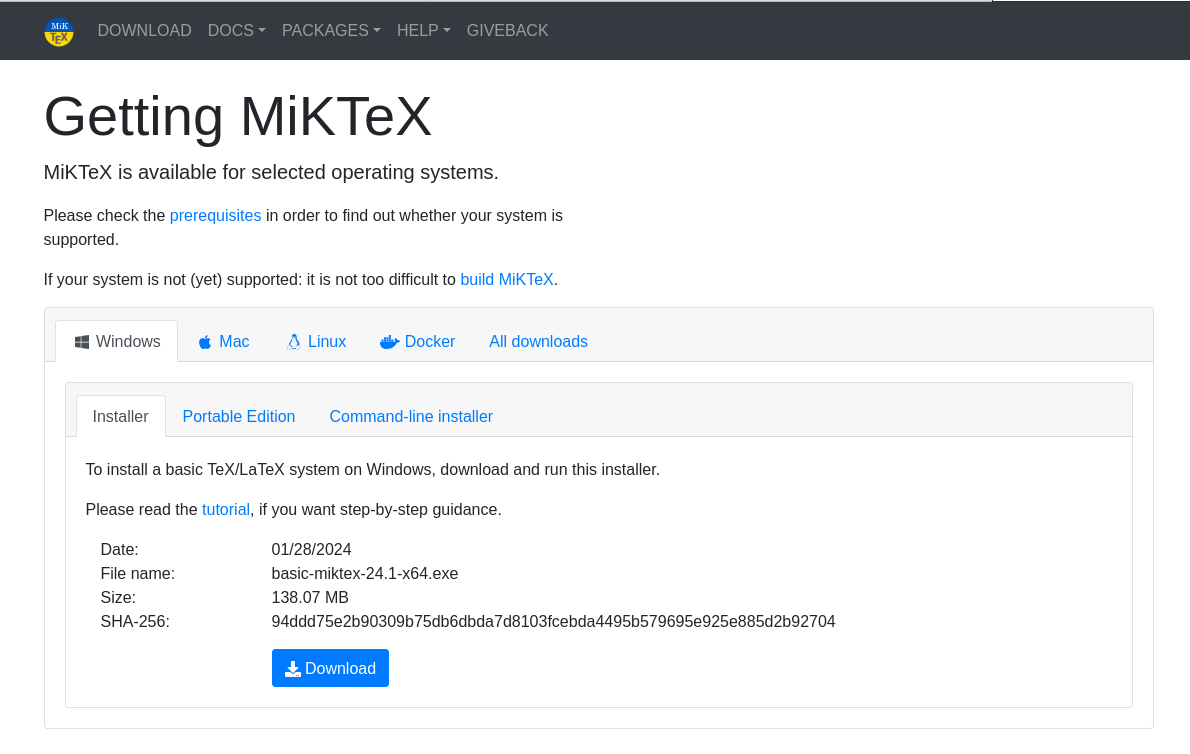
- Go to https://miktex.org/download
- Choose the Windows version
- Download the installer (recommended: MiKTeX-pdfTeX Installer)
- File size is approximately 200 MB
5.2 Step 2: Run the Installer
- Double-click the installer file
- Choose “Install just for me” (no admin rights needed)
- Follow the installation wizard until completion
5.3 Step 3: Set Preferences
- Install missing packages on-the-fly → select Yes
- Paper size → choose A4
- Click Start to begin installation
5.4 Step 4: Verify Installation
Open Command Prompt and run:
pdflatex --versionIf MiKTeX version information appears, installation was successful.
5.5 Step 5: Update Packages
- Open MiKTeX Console
- Click Updates → Check for updates → Update now
6 Installing MacTeX (macOS)
6.1 Step 1: Download the Package
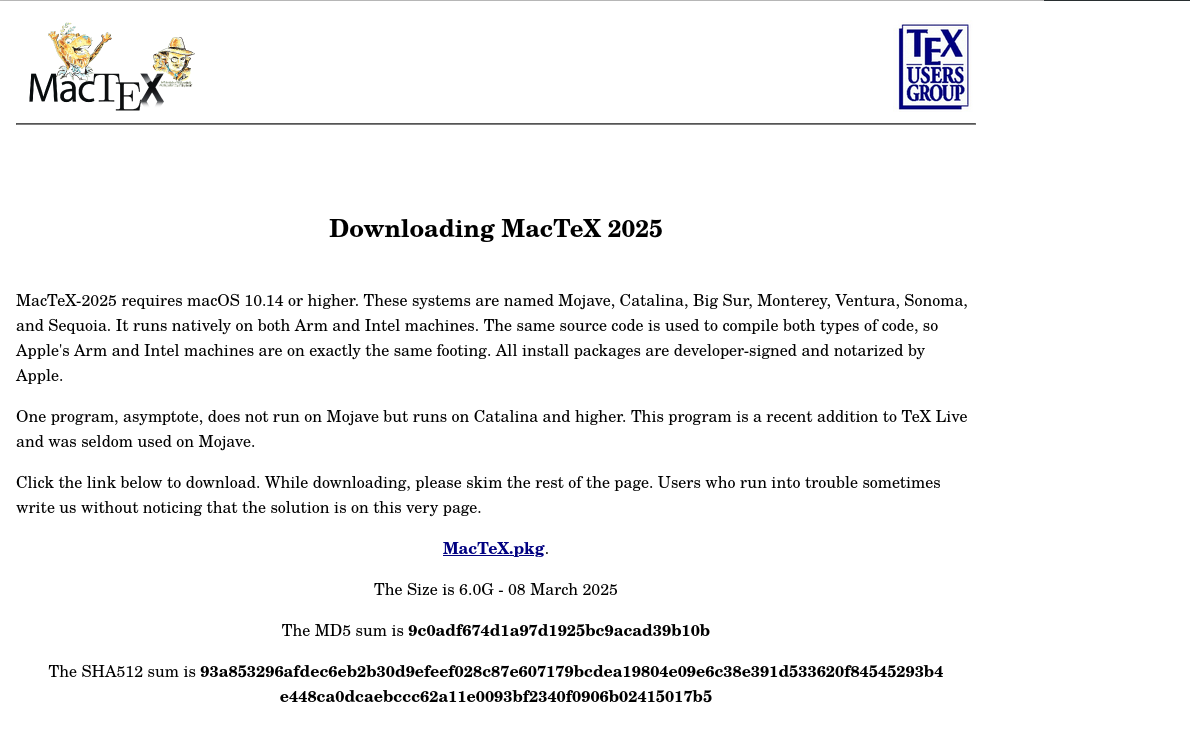
- Visit https://www.tug.org/mactex/
- Download MacTeX.pkg (~4 GB)
- For a lightweight version, choose BasicTeX (~100 MB)
6.2 Step 2: Installation Process
- Double-click
MacTeX.pkg - Follow the on-screen instructions
- Enter the admin password if required
- Wait 10–20 minutes until the process finishes
6.3 Step 3: Verify Installation
pdflatex --versionThe output will show the pdfTeX version from TeX Live.
6.4 Step 4: Update Packages
Use TeX Live Utility, then select Update All Packages.
6.5 Step 5: Launch TeXShop
- Installed automatically with MacTeX
- Location:
Applications/TeX/TeXShop.app - A user-friendly editor for macOS users
7 Installing TeX Live on Linux
7.1 Method 1: Using the Package Manager (Recommended)
Ubuntu/Debian:
sudo apt update
sudo apt install texlive-full
Fedora/RHEL:
sudo dnf install texlive-scheme-fullArch Linux:
sudo pacman -S texlive-most7.2 Method 2: Manual Installation (Advanced Users)
wget https://mirror.ctan.org/systems/texlive/tlnet/install-tl-unx.tar.gz
tar -xzf install-tl-unx.tar.gz
cd install-tl-*/
sudo perl install-tl
Then, add PATH configuration to ~/.bashrc:
export PATH=/usr/local/texlive/2024/bin/x86_64-linux:$PATHReload the shell:
source ~/.bashrc8 Installing a LaTeX Editor (Optional but Recommended)
| Editor | Platform | Key Features |
|---|---|---|
| TeXstudio | Windows, macOS, Linux | Full-featured, PDF integration, auto-completion |
| Overleaf | Online | Real-time collaboration, no installation |
| VS Code + LaTeX Workshop | Cross-platform | Modern, flexible, Git integration |
| TeXworks | Bundled | Lightweight and beginner-friendly |
| LyX | Windows, macOS, Linux | Word-like interface (WYSIWYM) |
9 Testing Your Installation
Create a file named test.tex:
\documentclass{article}
\usepackage[utf8]{inputenc}
\usepackage[english]{babel}

\title{LaTeX Test Document}
\author{Your Name}
\date{\today}

\begin{document}
\maketitle

\section{Introduction}
This is my first LaTeX document.

\section{Sample Formula}
Pythagorean theorem: $a^2 + b^2 = c^2$

\[
\int_0^\infty e^{-x^2} dx = \frac{\sqrt{\pi}}{2}
\]
\end{document}
Compile it via terminal:
pdflatex test.texOr compile directly from your editor (e.g., press F5 in TeXstudio).
If test.pdf is generated, your system is ready to use.
10 Common Issues and Solutions
| Issue | Solution |
|---|---|
| Package not found | Enable auto-install (MiKTeX) or run tlmgr install <package-name> (TeX Live) |
pdflatex command not recognized |
Ensure PATH is set correctly and restart the terminal |
| Font errors | Run sudo fc-cache -fv on Linux or reinstall MiKTeX on Windows |
| Compilation failed | Check the .log file for details and ensure all packages are installed |
11 Tips & Recommendations
11.1 For Beginners:
- Use MiKTeX + TeXstudio (Windows)
- Use MacTeX + TeXShop (macOS)
- Use TeX Live + TeXstudio (Linux)
11.2 For Advanced Users:
- Choose TeX Live for cross-platform consistency
- Use VS Code + LaTeX Workshop
- Store projects in Git for version control and collaboration
11.3 Maintenance:
- Update packages regularly
- Clean up temporary files (
.aux,.log) - Backup your templates and custom styles
12 Additional Learning Resources
- LaTeX Project
- CTAN (Comprehensive TeX Archive Network)
- LaTeX Wikibook
- TeX Live Documentation
- TeX Stack Exchange
13 Conclusion
Your choice of LaTeX distribution depends on your needs and operating system:
- MiKTeX → lightweight and beginner-friendly
- MacTeX → stable and well-integrated for macOS users
- TeX Live → versatile and ideal for all platforms
Once installed, you can start writing academic papers, journal articles, or professional books with precise and elegant typesetting.
Happy writing with LaTeX — a powerful, clean, and elegant document system.