Getting to Know Ubuntu: A User-Friendly Linux Distribution for All Needs

This article introduces Ubuntu, a popular, user-friendly Linux distribution designed for diverse use cases — from personal computing to professional development.
1 Introduction
In a world dominated by paid operating systems, Ubuntu emerges as a free, secure, and efficient alternative. As one of the most popular Linux distributions worldwide, it has proven itself a reliable and accessible choice for both beginners and IT professionals.
2 What Exactly Is Ubuntu?
Ubuntu is a Linux-based operating system developed by Canonical Ltd., a company founded by South African entrepreneur Mark Shuttleworth. The name “Ubuntu” originates from an African philosophy meaning “humanity towards others” or “I am because we all are,” reflecting the community spirit at the core of this project.
Built upon Debian, one of the oldest and most stable Linux distributions, Ubuntu takes Debian’s robustness and repackages it with a user-friendly interface—making it ideal for newcomers to the Linux ecosystem.
3 Key Features of Ubuntu
3.1 Open Source and Free
Unlike commercial operating systems, Ubuntu is completely free to download, use, and distribute. Its open-source nature allows anyone to view, modify, and improve the source code. It’s not just about cost—it’s about freedom and transparency in technology.
3.2 Strong Security
Ubuntu is designed with security as a top priority. It includes a built-in firewall, data encryption, and automatic security updates. Thanks to Linux’s architecture, Ubuntu is naturally resistant to viruses and malware, making it a safe choice for all types of users.
3.3 Stability and Performance
Ubuntu offers Long-Term Support (LTS) versions, supported for five years with security updates. These releases ensure long-term stability—ideal for businesses and users who value reliability.
3.4 Intuitive User Interface
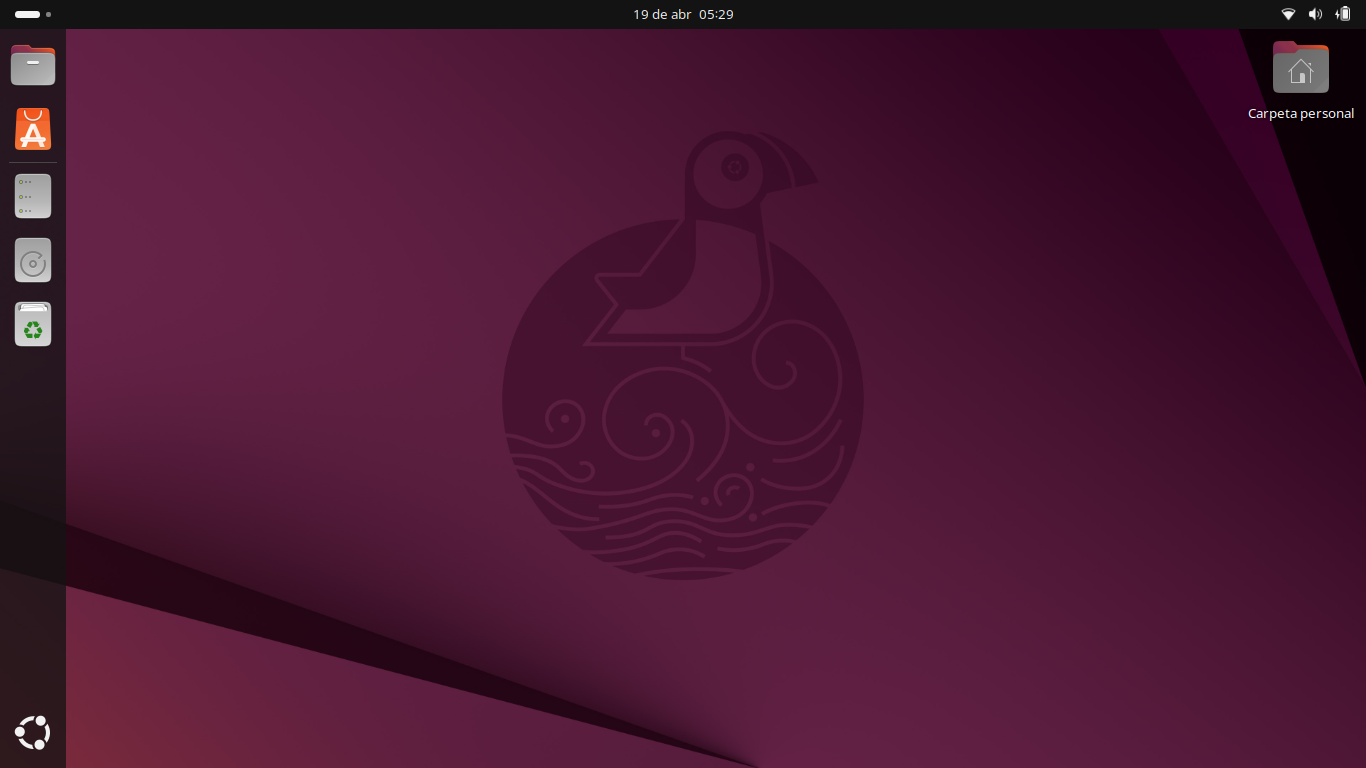
Ubuntu 25.04 desktop running the modern GNOME environment
Note: For the latest screenshots, visit ubuntu.com/desktop
Ubuntu uses the GNOME desktop environment by default, offering a modern and elegant experience. The interface is intuitive even for users transitioning from other operating systems. The left-hand dock provides quick access to favorite apps, while the Activities Overview allows fast searching of files, apps, and settings.
4 Ubuntu Flavors for Every Need
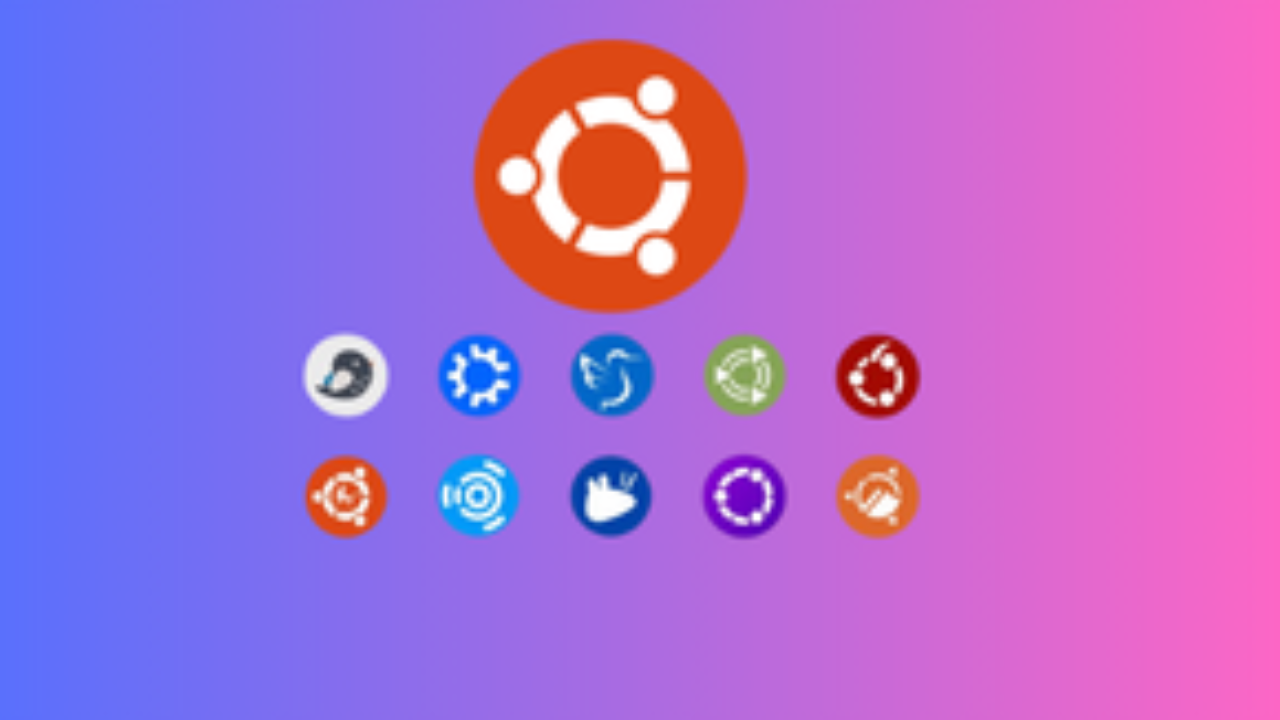
Various Ubuntu flavors designed for specific use cases
Note: Explore all flavors at ubuntu.com/desktop/flavours
Ubuntu comes in several editions tailored to different needs:
- Ubuntu Desktop – For personal and office use, with a complete graphical interface.
- Ubuntu Server – Optimized for servers and cloud computing, without a GUI for efficiency.
- Ubuntu Studio – Geared toward content creators, including professional tools for audio, video, and graphics.
- Kubuntu, Xubuntu, Lubuntu – Variants using different desktop environments (KDE, Xfce, LXQt) for various performance and aesthetic preferences.
5 Advantages of Using Ubuntu
5.1 Active and Supportive Community
Ubuntu’s community is one of its greatest strengths. You’ll find active forums, detailed documentation, and countless tutorials in many languages. When an issue arises, someone in the community has likely faced and solved it.
5.2 Wide Hardware Compatibility
Ubuntu supports a vast range of hardware—from old laptops to modern workstations. Most drivers are included out of the box, minimizing manual setup.
5.3 Rich Application Ecosystem
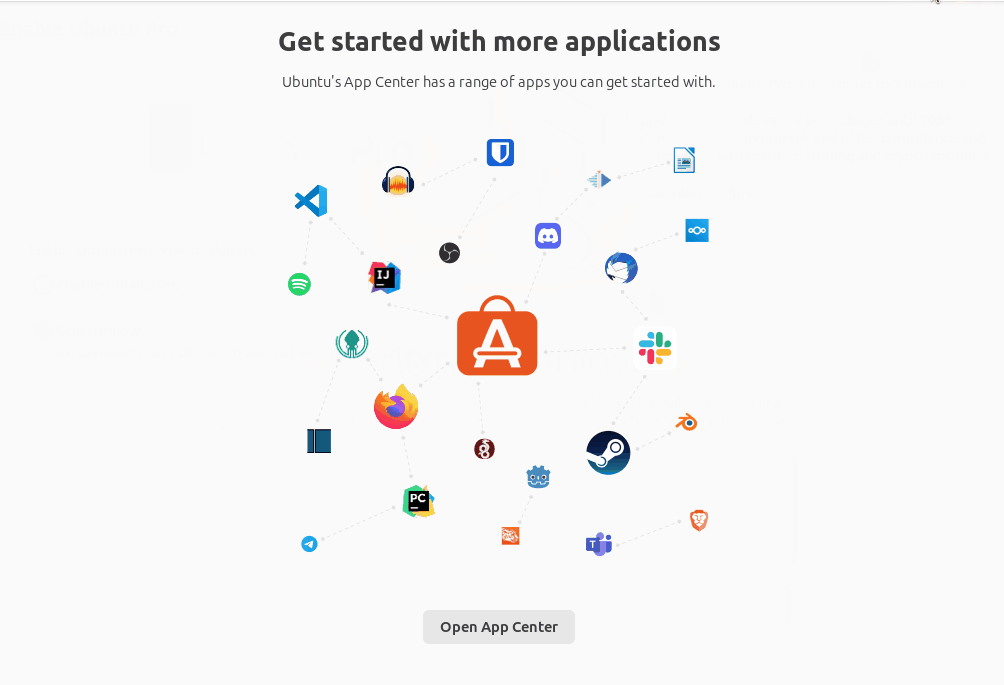
Ubuntu Software Center offers thousands of free apps through an intuitive interface.
The Ubuntu Software Center lets you easily install thousands of free applications—no command line required. From office suites like LibreOffice to browsers like Firefox and Chrome, most tools are available with a few clicks.
5.4 Ideal for Software Development
Ubuntu is a favorite among developers. It supports almost all major programming languages and development tools, making it perfect for web, mobile, and desktop development.
6 Release Cycle and Support
Ubuntu releases a new version every April and October, named based on the year and month—e.g., Ubuntu 25.04 (April 2025). Each version has a unique codename, such as “Plucky Puffin.”
Users can choose between:
- Regular releases (9-month support)
- LTS releases (5-year support)
For production environments, LTS versions are highly recommended.
7 Who Should Use Ubuntu?
Ubuntu is suitable for:
- Linux beginners exploring an easy-to-learn alternative OS
- IT professionals seeking a stable development or server platform
- Educational institutions wanting a cost-effective, reliable solution
- Businesses reducing licensing costs without compromising security
- Content creators using multimedia tools without expensive software
8 Ubuntu Installation Guide
Installing Ubuntu is straightforward—even for beginners.
8.1 Preparation Before Installation
1. Backup Important Data
Always back up essential data before installation, whether to external media or the cloud.
2. Minimum System Requirements
- 2 GHz dual-core processor or higher
- 4 GB RAM (8 GB recommended)
- 25 GB disk space minimum
- USB or DVD drive
- Internet connection (recommended)
3. Download Ubuntu ISO File
Visit ubuntu.com and download the desired ISO—preferably the latest LTS version.
8.2 Creating a Bootable Installation Media
For USB Drive: Use Rufus (Windows), balenaEtcher (cross-platform), or Startup Disk Creator (Linux) to create a bootable USB.
Steps using balenaEtcher:
- Open balenaEtcher
- Select the downloaded Ubuntu ISO
- Choose your USB drive
- Click “Flash” and wait for completion
8.3 Step-by-Step Installation
Step 1: Boot from Installation Media
- Restart your PC and enter BIOS/UEFI (press F2, F12, Del, or Esc)
- Set USB/DVD as first boot priority
- Save and reboot
Step 2: Start Ubuntu Installer Choose:
- “Try Ubuntu” — try it live without installing
- “Install Ubuntu” — begin installation
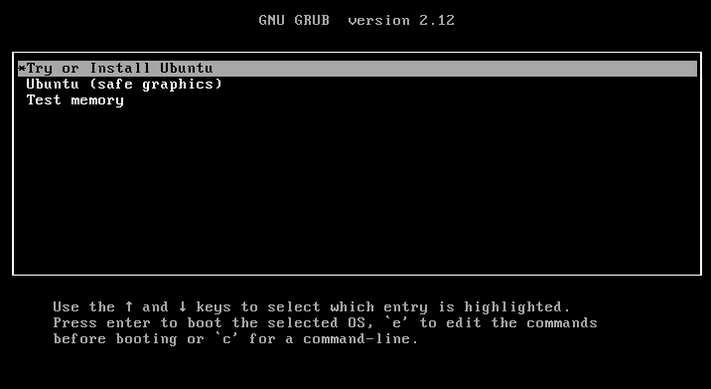
Step 3–7:
Follow prompts for:
- Language & keyboard layout
- Internet connection
- Installation type (erase disk, dual-boot, or manual partition)
- Timezone selection
- User account creation
Step 8: Installation Process Ubuntu will copy files and install. This takes ~15–30 minutes.
Step 9: Restart Once complete, remove the USB and reboot into Ubuntu.
8.4 Post-Installation Setup

Ubuntu welcome screen after first boot.
1. Update the System
sudo apt update
sudo apt upgrade
2. Install Additional Apps Use Ubuntu Software to install:
- Chrome / Firefox
- VLC Media Player
- GIMP
- LibreOffice
3. Configure Drivers Go to Software & Updates → Additional Drivers for proprietary graphics drivers if needed.
4. Personalize the Desktop Settings → Appearance allows theme, wallpaper, and layout customization.
8.5 Dual-Boot Tips
If installing Ubuntu alongside Windows:
- Install Windows first
- Disable Fast Startup in Windows
- Disable Secure Boot if boot issues occur
- Ubuntu will automatically detect Windows and configure GRUB for dual-boot.
9 Conclusion
Ubuntu is a comprehensive operating system combining powerful features, high performance, and user-friendly design. With strong community support, regular updates, and open-source principles, it remains a top choice for millions worldwide.
For anyone looking to move away from proprietary systems or explore Linux, Ubuntu offers the perfect entry point—balancing ease of use, security, stability, and freedom.
Interested in trying Ubuntu? Visit ubuntu.com to download the latest version and start your open-source journey today.