Overview of eLearner

Contents
Introduction
 During the Covid-19 pandemic, there are many online learning applications that schools can use to carry out online learning, such as Edmodo, Epelajar, Google Classroom, Moodle and so on. Of course, each application has its own advantages and disadvantages.
For example, some of the advantages of the Epelajar application are:
During the Covid-19 pandemic, there are many online learning applications that schools can use to carry out online learning, such as Edmodo, Epelajar, Google Classroom, Moodle and so on. Of course, each application has its own advantages and disadvantages.
For example, some of the advantages of the Epelajar application are:
- System/Technical:
- The only e-learning based conference platform
- Excellent audio and video quality
- Real time chat feature that can be monitored by the teacher
- Lighter bandwidth due to video streaming from one frame
- User Friendly
- Security and privacy are protected
- Schools can monitor teachers regarding the lesson plans taught on that day
- Schedules and rooms can be adjusted
- Presence status is automatically recorded
- Full access by the teacher such as activating/deactivating student video and audio tools, share screen, real time chat, question and answer and live presentations.
 Fill in your registered school email and password then click login. After successful login it will be visible The menu displays in the Epelajar application are:
## 1. Home
it looks like in the following picture:
Fill in your registered school email and password then click login. After successful login it will be visible The menu displays in the Epelajar application are:
## 1. Home
it looks like in the following picture:
 It contains the school name, notification icon, class, subjects, teachers and students.
## 2. Class
it looks like the following image:
It contains the school name, notification icon, class, subjects, teachers and students.
## 2. Class
it looks like the following image:
 In the class menu there are features for number of views, search, import, add, edit and delete.
## 3. Subjects
it looks like the following image:
In the class menu there are features for number of views, search, import, add, edit and delete.
## 3. Subjects
it looks like the following image:
 It contains features for viewing, searching, importing, adding, editing and deleting.
## 4. Schedule
it looks like the following picture:
It contains features for viewing, searching, importing, adding, editing and deleting.
## 4. Schedule
it looks like the following picture:
 It contains features for number of subjects, search, create, details, edit and delete.
## 5. Teacher
how it looks like the following picture:
It contains features for number of subjects, search, create, details, edit and delete.
## 5. Teacher
how it looks like the following picture:
 In it there are features for viewing, searching, importing, adding, editing and deleting.
## 6. Students
it looks like the following image:
In it there are features for viewing, searching, importing, adding, editing and deleting.
## 6. Students
it looks like the following image:
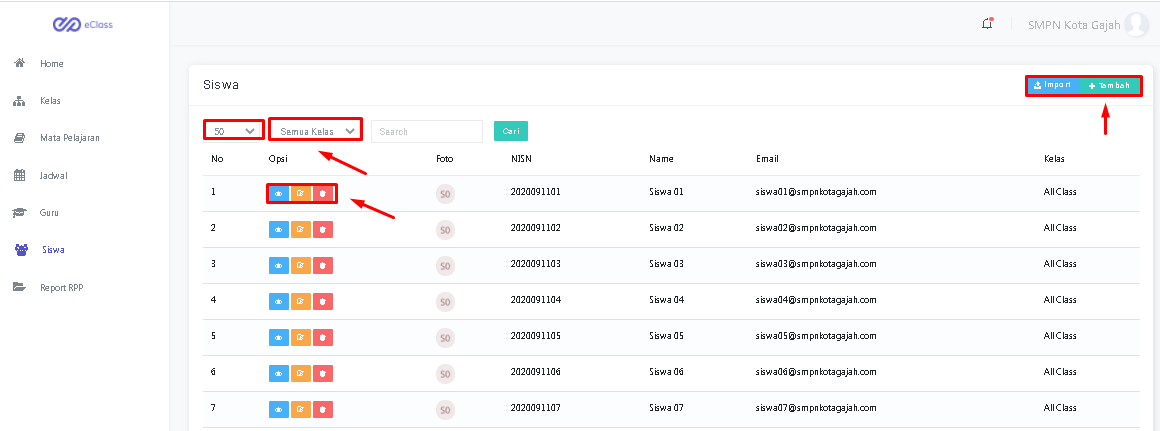 In it there are features for number of views, classes, search, import, add, details, edit and delete.
**
In it there are features for number of views, classes, search, import, add, details, edit and delete.
**- RPP Report,** it looks like the following picture:
 In it there are features for the number of views, search and show options. If the show option is opened, it will look like the following image:
 To be able to use it in schools, the next step is to add activities to the application, such as creating classes, making lesson schedules, entering teachers and students and making lesson plans. That’s a glimpse of the information about Epelajar along with the menus and features found in the Epelajar application. I hope this is helpful. 😊.