Setting Page Margins

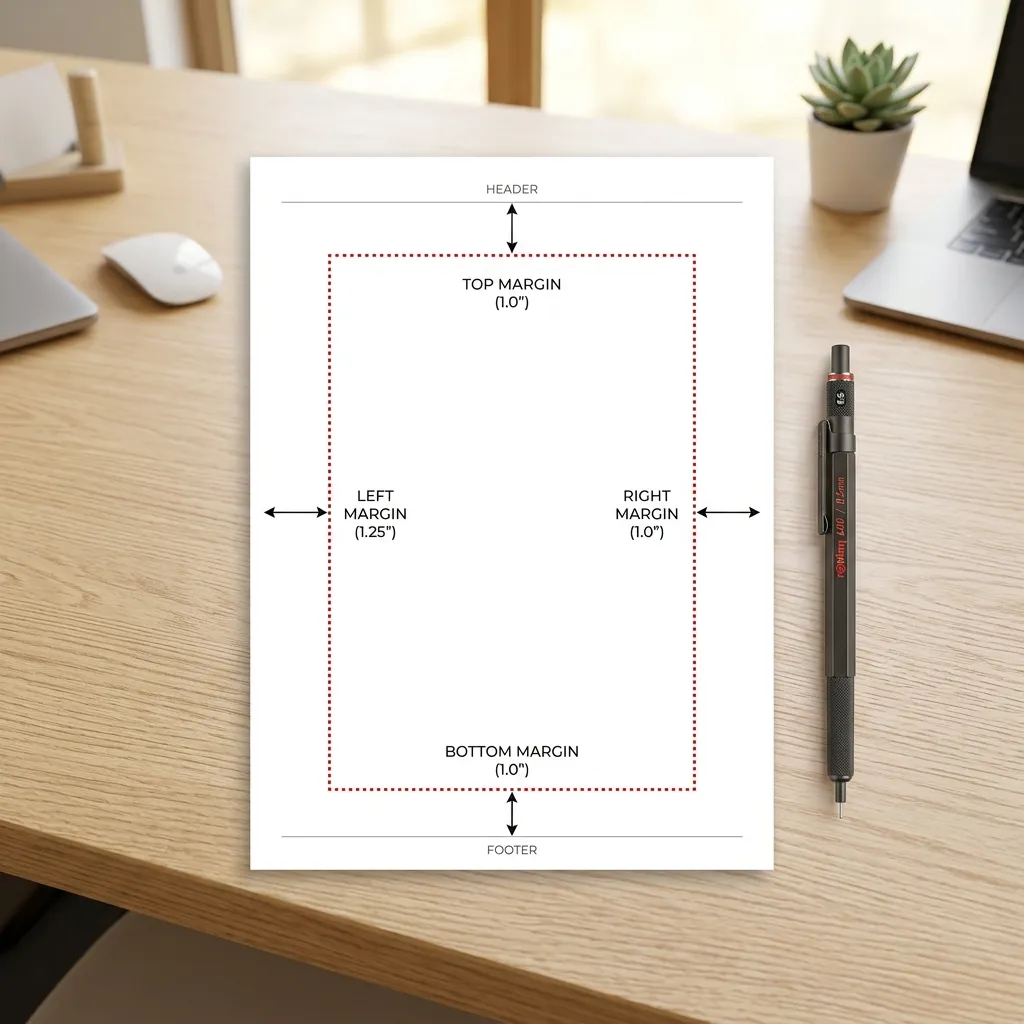
Setting Page Margins in LaTeX
When writing a document in , page margins should be defined early so the printed result matches the intended layout. A page margin is the empty space between the document content and the edge of the paper.
Document classes such as article already provide default margin settings. If you want to inspect that layout, you can use the layout package.
\documentclass{article}
\usepackage{layout}
\begin{document}
\layout
\end{document}
The compiled result will show the page layout information.
[

To set the top, left, bottom, and right margins directly, the most practical package is geometry.
Basic format:
\usepackage[top=distance,left=distance,bottom=distance,right=distance]{geometry}Positive Margins
The following example sets the top margin to 3 cm, left 3 cm, bottom 3 cm, and right 2.5 cm.
\documentclass[a4paper,12pt]{article}
\usepackage[top=3cm,left=3cm,bottom=3cm,right=2.5cm]{geometry}
\begin{document}
I am setting page margins in LaTeX.
\end{document}
[

You do not have to specify every side. For example, this sets only the top and left margins:
\documentclass[a4paper,12pt]{article}
\usepackage[top=3cm,left=3cm]{geometry}
\begin{document}
I am setting page margins in LaTeX.
\end{document}
If all margins should be the same, use the shorthand margin option.
\documentclass[a4paper,12pt]{article}
\usepackage[margin=3cm]{geometry}
Zero and Negative Margins
The geometry package also allows a margin of 0cm or even a negative value.
\documentclass{article}
\usepackage[top=0cm,left=3cm,bottom=3cm,right=-3cm]{geometry}
\usepackage{lipsum}
\begin{document}
\lipsum[1-3]
\end{document}
With that setup, the text can start exactly at the top edge and even extend past the right boundary.
[

This kind of setup is usually reserved for special layouts, not ordinary documents.
Different Margins on Different Pages
You can also change the margins in the middle of a document. For example, suppose page one uses 3 cm margins on all sides, but page two needs:
- top: 4 cm
- left: 6 cm
- bottom: 4 cm
- right: 5 cm
Use \newgeometry for that page.
\newgeometry{top=4cm,left=6cm,bottom=4cm,right=5cm}[

To return to the original margin settings from the preamble, use:
\restoregeometryThis command is usually placed at the beginning of the next page. If needed, add \newpage to force a page break.
Closing Note
In most documents, page margins only need to be set once. But for special pages containing large images, tables, or full-page graphics, it is useful to temporarily redefine the margins and then restore them.
With the geometry package, page margin control in becomes simple and flexible.