Perimeter and Area of a Circle

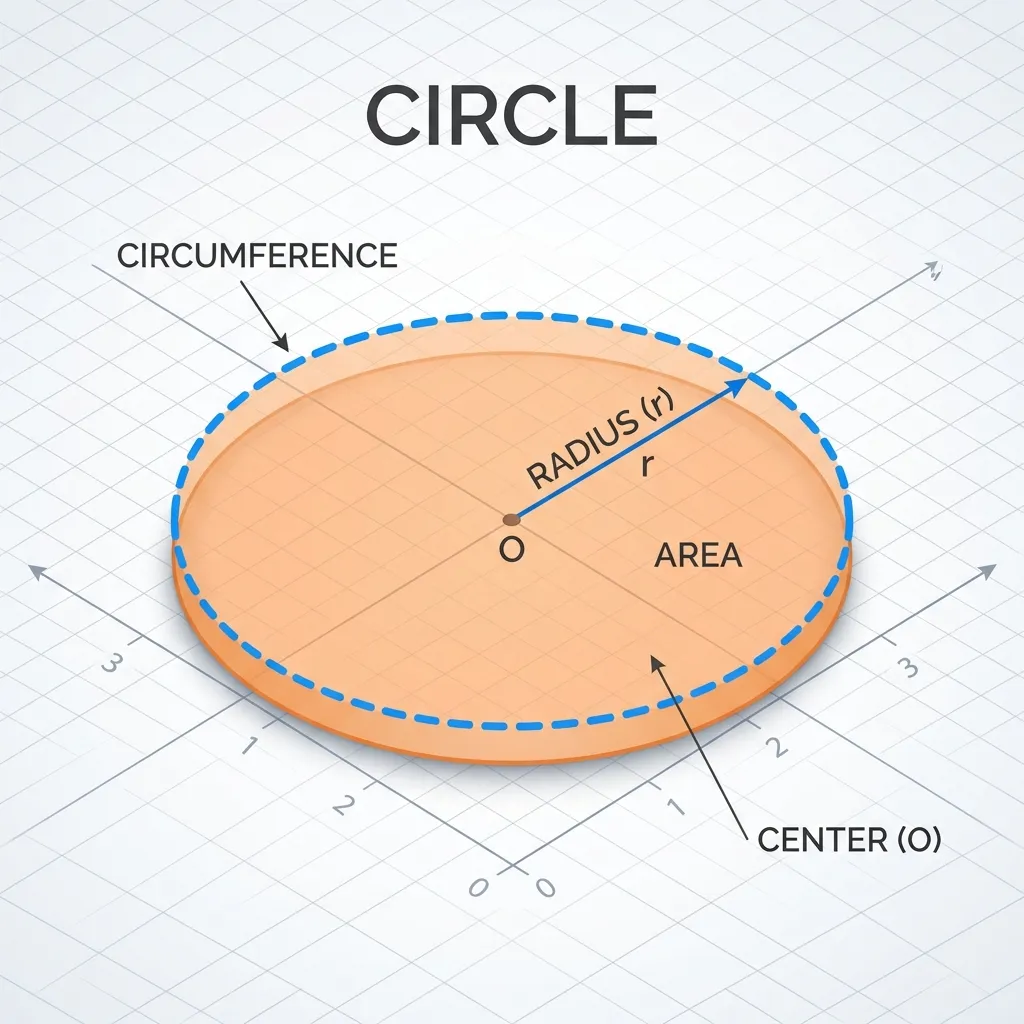
As is known, a circle is a simple closed curve which is the locus of points that have the same distance from a certain point. The circumference of a circle is the length of the path taken along the circle from the origin back to the origin. The area of a circle is the area bounded or surrounded by a circular curve. The formula for finding the circumference and area of a circle is:
\(\begin{aligned} \text{Around}&=2\pi r\ \text{and}\ \text{Area}=\pi r^2 \end{aligned}\)
We can create animations in GeoGebra to determine the circumference and area of a circle created. How to? Follow the following guide.
Steps to create an animation of the circumference and area of a circle in GeoGebra
1. Open GeoGebra
Open the GeoGebra application on your computer or device.
2. Create a Radius Slider
Click tools *Sliders*. Click on the Graph View and type Radius, min=$1$, max=$4$ (as needed), increment=$0.1$. Click *OK*. Look at the following image.
 ### 3. Create a Circle with the Slider RadiusClick tools *Circle with center & radius*. Click on Graphic View, a box appears and type *Fingers*. Look at the following image.
 ### 4. Create a circumference formula textClick tools *Move*. Click *Sliders* choose *Text* and type Perimeter = $2\pi r$. Click *OK*. Look at the following image.
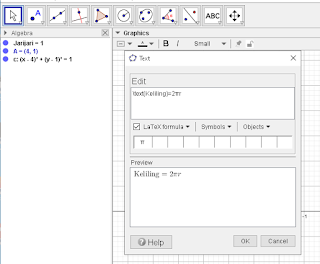 ### 5. Create a circumference calculation textClick again on Graphic View. Type = $2\times 3.14\times \text{Finger}$. Click *OK*. Look at the following image.
 ### 6. Create a Perimeter VariableIn column *Inputs*, type $K=2*3,14*Radiku$. Click *enter*. Look at the following image.
 ### 7. Create Roving Value TextClick tools *Sliders*. Choose *Text* and type $= K$. Click *OK*. Look at the following image.
 ### 8. Create Broad Formula TextNext we will create text area of the circle. Click tools *Sliders*, choose *Text*. Click on Graph View, and type $\text{Area}=\pi r^2$. Click *OK*. Look at the following image.
 ### 9. Create Extensive Calculation TextStill in Graphics View, type $=3,14\times \text{Radier}^2$. Click *OK*. Look at the following image.
 ### 10. Create Wide VariablesIn column *Inputs* type $L=3,14*\text{Finger}\textasciicircum 2$, click *enter*. Look at the following image.
 ### 11. Create Broad Value TextClick tools *Sliders*, choose *Text*. Click on Graph View and type $=L$. Click *OK*.
12. Create a check box for traveling around
Next we will create *Check Box*. Click tools *Sliders* choose *check box*. In the caption, type Surrounding. Next, click the small arrow icon below it and select text1, text2, and text
- Click Apply. Look at the following image.
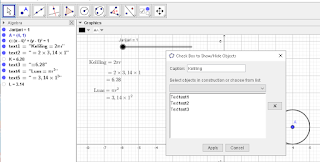
13. Create a Check Box for Area
As in step $12$, in the caption type Area. Next select text4, text5, and text
- Click Apply. Look at the following image.

14. Check Box Test
To test steps $12$ and $13$, please click on the Perimeter and Area boxes to show/hide the perimeter and area texts. Look at the following image.
 ### 15. Create an Animated Control ButtonNext we will create buttons to turn on, turn off, and reset the circumference and area of the circle animation. Click tools *Sliders*, choose *Buttons*. In the caption, type *ON* and in the GeoGebra Script section type *StartAnimation[Finger].* Create another button, in the caption type *OFF* and in the GeoGebra Script section type *StartAnimation[false]*. Create another third button, in the caption type RESET and in the GeoGebra Script section type StartAnimation[false] *Radius=1. *Click* OK.*
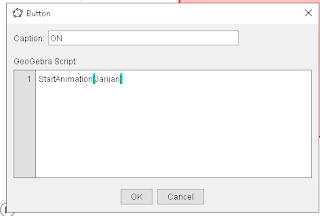 ### 16. Tidy Up the AppearanceThe final part, tidy up the appearance of the slider, circle, check box, On, Off and Reset buttons, color them according to your wishes.
The final result
Below is an example of an animation of the circumference and area of a circle using GeoGebra. Check/Uncheck the perimeter or area box to display or hide the circumference and area of the circle text. Click the ON button to turn on the animation, OFF to stop the animation, and RESET to return the circle animation to its initial appearance with radius $1$.
That's the article on how to create an animation of the circumference and area of a circle using GeoGebra. If there are errors, please correct them, if you don't understand, let's discuss, if you have comments, write them here, if you like it, I'll make another guide. I hope this is helpful.