How to Upload an ISpring Quiz into Moodle


Integrating iSpring Quizzes with Moodle LMS

The iSpring Suite application is a versatile e-Learning authoring tool that allows you to create various types of e-Learning content. With iSpring Suite 9 applications, you can insert quizzes, surveys, interactions, dialogue simulations, or screen recordings directly into PowerPoint presentations. In the Quick Start window, we can select the type of material we want to create, such as a new course, quiz or survey, interaction, dialogue simulation, or screencast, or open material that we have previously created. On this occasion we will provide a tutorial on how to upload quizzes created in iSpring into Moodle.
Step-by-Step Upload Guide
Step-by-Step Upload Guide
The steps are as follows:
- After you have finished creating the quiz in iSpring, click the publish menu as shown in the following image:


Then select and click LMS, Write the name of the quiz, Select a storage location, Check use iSpring if you want to open it on your cellphone/tablet using iSpring Play, Select Scorm 1.2 and finally click Publish.
- Next, open the Moodle LMS

Select the course you want to add the iSpring quiz to, you can click on the list on the left or the course image as shown below:

Here I will add a quiz for class IX


Next, click the gear icon and click Turn Editing On.
- Select the material that will be given the daily quiz/assessment then click the + Add an activity or resource icon at the bottom right.

- A page appears as shown below:


Click the Scorm Package button and click add.
- After that, the following page will appear

The Name box must be filled in, adjust it according to your needs. The description is optional, it may or may not be filled in
- After that, scroll down, to the section package click the file icon. Documents that can be uploaded have xml and zip extensions.

After that the following page appears, click upload a file and click choose file as shown in the following image:

Find where the ispring quiz file that was created is stored


Once found, click the file and click open
After that the file name appears and click upload this file as shown in the following image:

After the file has been successfully uploaded, the file will appear in the package box as shown in the following image:

After that, scroll down, you will see a display like the following image:
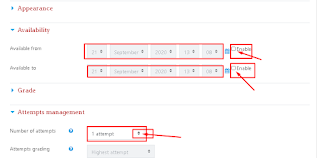


in the appearance, availability, grade, attempts management sections are regulated according to needs
Scroll down, once all the daily quiz/assessment settings are sufficient, please click save and return to course or save and display as shown in the following image:

If in step 14 you click save and return to course, then the material being given a quiz/assessment will display as shown in the following image:


Edit settings is used to edit quiz settings in Moodle, hide to display the quiz to students. That’s how to upload an iSpring quiz into Moodle. Good luck and good luck. Hopefully this tutorial is useful. Thank you. 🙏.