Shadow of Two Circles

Creating a Two-Circle Shadow Animation in GeoGebra
This tutorial shows how to create a moving shadow-like pattern from two circles in GeoGebra. The effect comes from animating a point on one circle, building another circle from that moving point, and letting its trace produce a colorful pattern.
Here is the visual result.

Steps 1-3: Create the First Circle and Point C
Open GeoGebra.
Select Circle with Center through Point, then create a circle with center
Aand pointB.
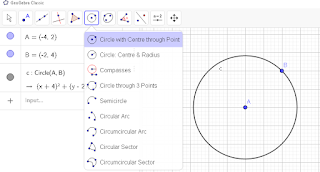
- Select New Point, then place point
Con the circumference.

Steps 4-5: Create the Second Circle and Turn On Animation
- Select Circle with Center through Point again, then click
Cas the center andBas the point on the circle.

- Right-click point
C, then choose Animation On. The second circle will now move.

Steps 6-7: Set Trace and Dynamic Color
- Choose the Move tool, right-click the circle centered at
C, open Settings, and enable Show Trace.

- In the Advanced tab, fill the dynamic color fields with:
Red = x(C)Green = y(C)Blue = 4x(C)

Steps 8-12: Finish and Explore the Pattern
Return to the basic settings and confirm that Show Trace is still enabled.
Turn Animation On for point
Cagain if needed.
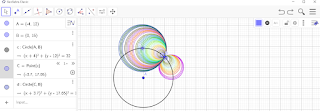
Open View and choose Refresh Views to clear and reset the display.
Let the animation run again to build a new trace pattern.
Repeat Refresh Views whenever you want to generate another variation.


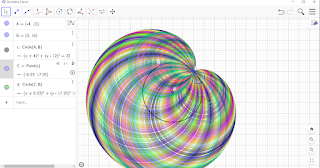
Final Interactive Result
You can try the interactive version below. Press the Play button in the lower-left corner, then drag the points or circles to see different shadow variations.
Closing
That is the basic workflow for creating a two-circle shadow animation in GeoGebra. By combining point animation, trace, and dynamic color, you can produce a simple but visually rich motion pattern.